
Reports are the way that you can present data to your client.
A report is based on a single data feed and its data is controlled via its template, and its formatting is controlled via CSS.
 There are two videos that will come in handy when dealing with reports: How to create a report, and How to use a Report Creator.
Once you have set up a feed, creating a report has a few steps you will need to go through.
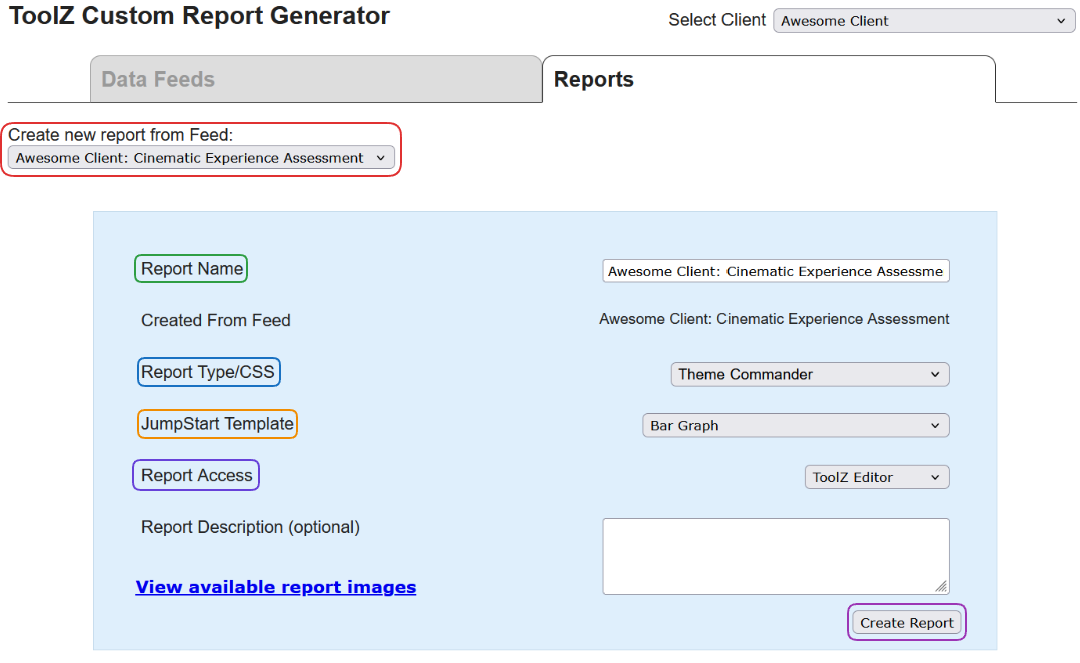
In the Reports tab, select a feed you want to create a report for, and give your report a name. This name will be visible to your clients in the report menus, and must be unique to the client.
The Report Type/CSS has a few options, and if your client has a Theme Commander enabled, you can select their theme rather than the standard ToolZ CSS.
The JumpStart Template will provide you with a base template to help you get started, and the Report Access selector ensures you can make the report visible to only managers you want. Until the report is finished, it's best to keep this selector at the 'ToolZ Editor' level.
Use the Create Report button to create the report, and Launch Report Editor button that will appear to begin working on it in the ToolZ IDE.