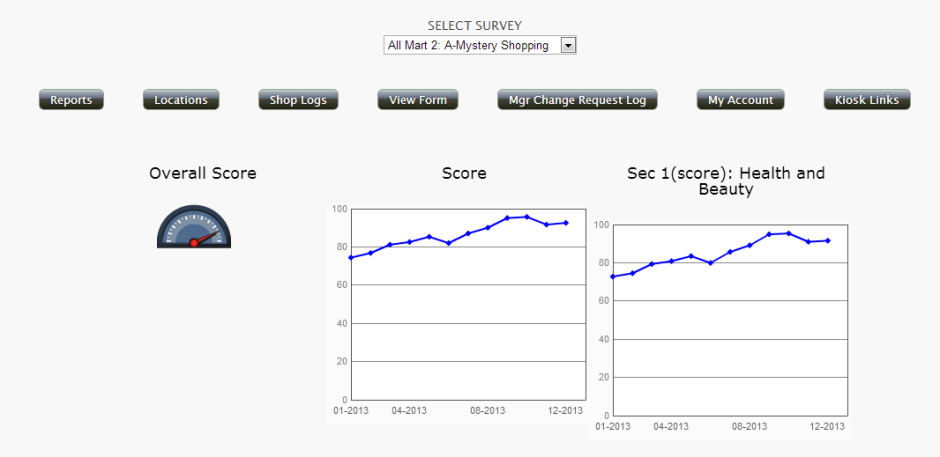
A client may wish to have their custom data displayed right on their landing page. While it isn’t currently possible to use ToolZ reports as Chameleon widgets, it is possible to use a single ToolZ report as a replacement for the home page content.
The first step is to create your dashboard report in ToolZ. Once it is to your liking, publish it and activate it for the appropriate type of user (keep in mind that this will display on the home page, so it’s likely you will need to activate it for “Everyone”).
Next, if the client/MSP would like the dashboard to replace an existing Chameleon setup, you’ll need to deactivate their current dashboard. (Note: DO NOT do this without confirming with the MSP first).
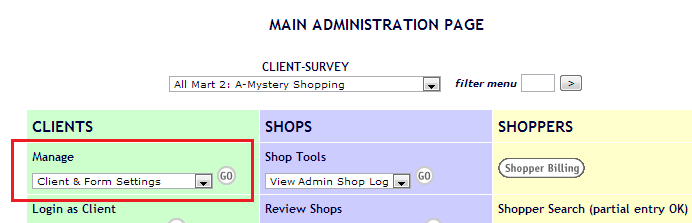
1. From the main admin page, select one of the client’s surveys and click “GO” next to the “Client & Form Settings” menu
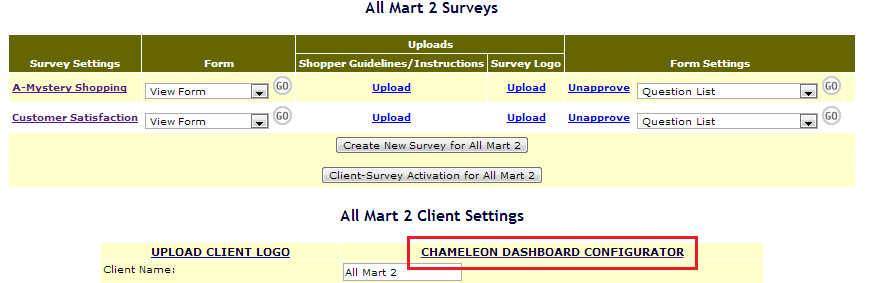
2. Under the “Client Settings” header, click the “CHAMELEON DASHBOARD CONFIGURATOR” link
3. Click to expand the global Chameleon settings
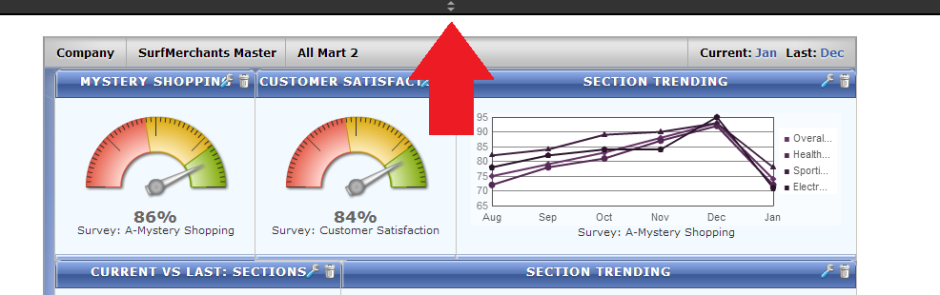
4. Click “Turn Chameleon OFF”
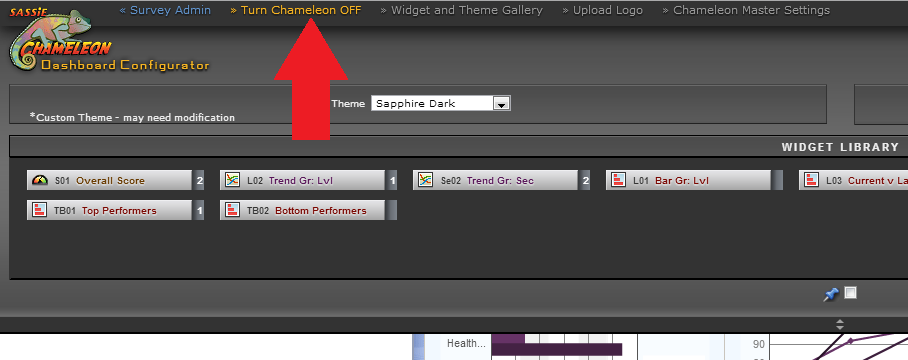
After this, you’ll need to find the URL for your custom report. The easiest way to find this is to grab the URL from the “Custom Reports” menu on the Client Reports page.
1. Back on the main Admin page, click “Go” next to the “Login as Client” menu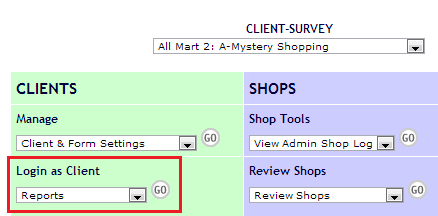
2. Inspect the “Custom Reports” menu or view source and find your report in the “Custom Reports” select menu. Copy the URL that is being used as the option value.

Finally, you’ll want to ad an iframe for your report to the Client Announcement so that it displays on the home page. (This is another thing you should check with the MSP about before you do it.)
1. Return to the Client & Form Settings page for the client. Scroll to the bottom of the page and locate the “Client Announcement” field.
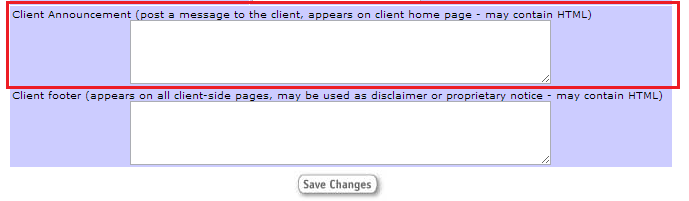
2. Add the following code to the announcement field, substituting your URL for the one shown. Replace the domain and MSP with .. (so “http://www.sassieshop.com/2project/client/xjump/Report” becomes “../client/xjump/Report”) You can adjust the height and width as need.
<iframe src="../client/xjump/CustomDashboard1359149136943?changeSurveyID=1229&xpopup=" style="width: 1100px; height: 1500px"></iframe>
3. Save the settings and go to the Client Home page, where your dashboard should now be displayed.