
Question/Section linking allows you to link sectional scores and/or questions from two or more surveys together so that their results are reported together. This can be useful when a client has different types of surveys with many similar questions or sections.
Question Linking
To link individual questions from two or more surveys so that their results are exported together, follow these steps:
- Begin on the Question List page of the first survey you want to link
- Click the Mass Editor button at the top of the page
- Next to each question you want to link, create a link name and enter it in the “Link” box.
- You can name your link anything you want; however, each link on the same form must be unique
- Repeat steps 1 & 2 for the second survey you want to link. Then, for each question you want to link, enter the link name you created for the corresponding question in the first survey. In other words, the link name in the second survey must match the link name in the first survey for each question you want linked.
- For all additional surveys you want to link, repeat step 4.
Section Linking
To link sections from two or more surveys together, follow these steps:
- Begin on the ToolZ Feed page
- Select the Master Survey feed you’d like to link sections for. Once that loads, click the “Link Survey Sections” link.
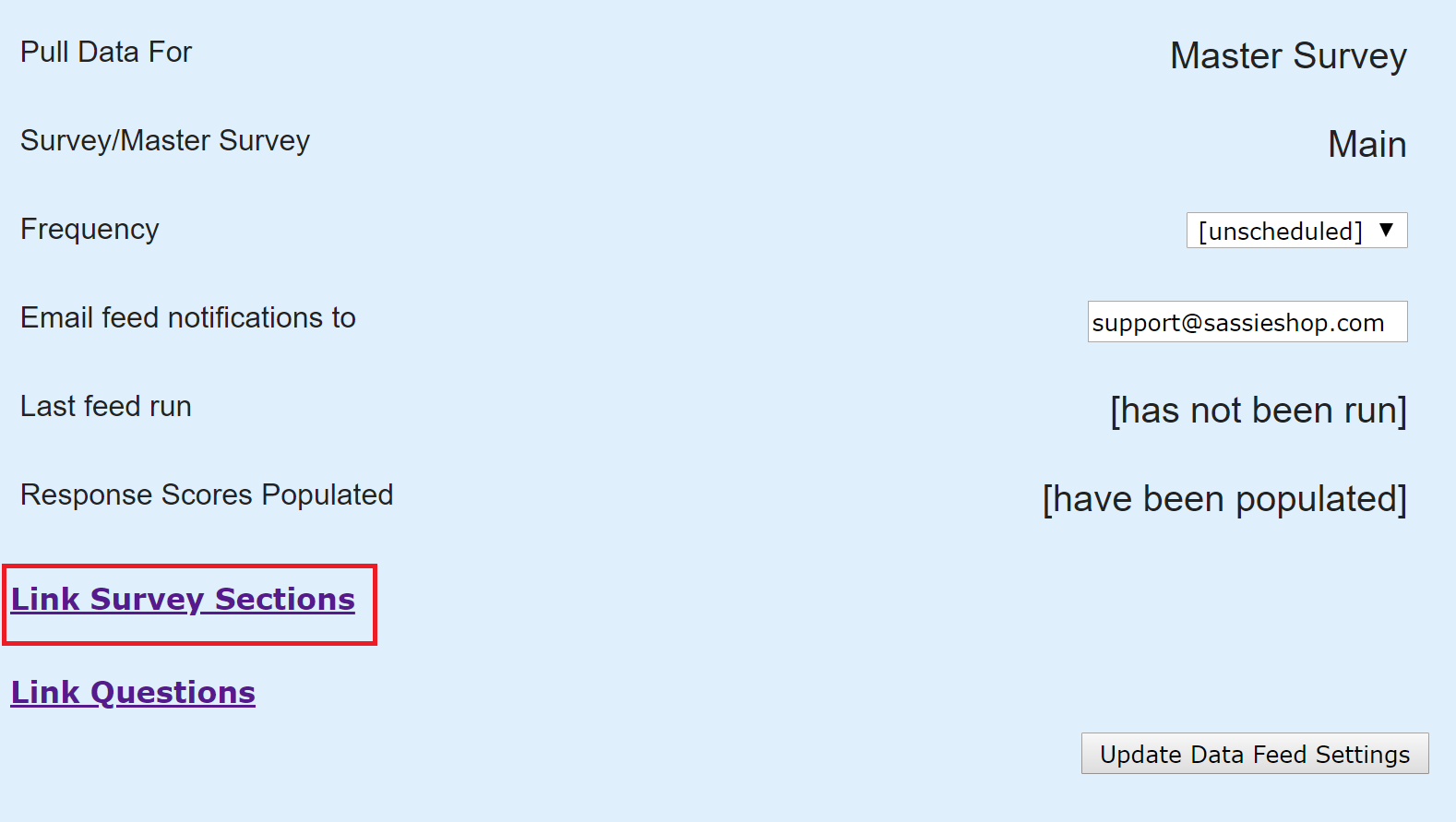
- Select the client you want and click GO
- Click “Add New Link”
- Choose a label for your link and enter it in the “Link Label” box.
- Check the box next to the surveys you want to link; then select which sections you want to link for each survey you selected. Then click GO